Adobe Illustrator T Shirt Design Tutorial
Adobe Illustrator is the industry standard for professional t-shirt design because it works in vectors — artwork that stays perfectly crisp at any size and separates cleanly into ink colours for printing. This tutorial covers the whole professional workflow: setting up the artboard, choosing the right colour mode, turning a sketch into vectors with Image Trace, understanding vector versus raster, and exporting a print-ready file for either a screen printer or a print-on-demand service.
Illustrator has a steeper learning curve than a drag-and-drop maker, but the payoff is total control and files that any professional printer can use. If you plan to sell at volume or use screen printing, this is the skill that pays off.
Step 1: Set up the artboard the right way
Professional t-shirt design starts with a correctly configured document. Get this right and everything downstream is easier.
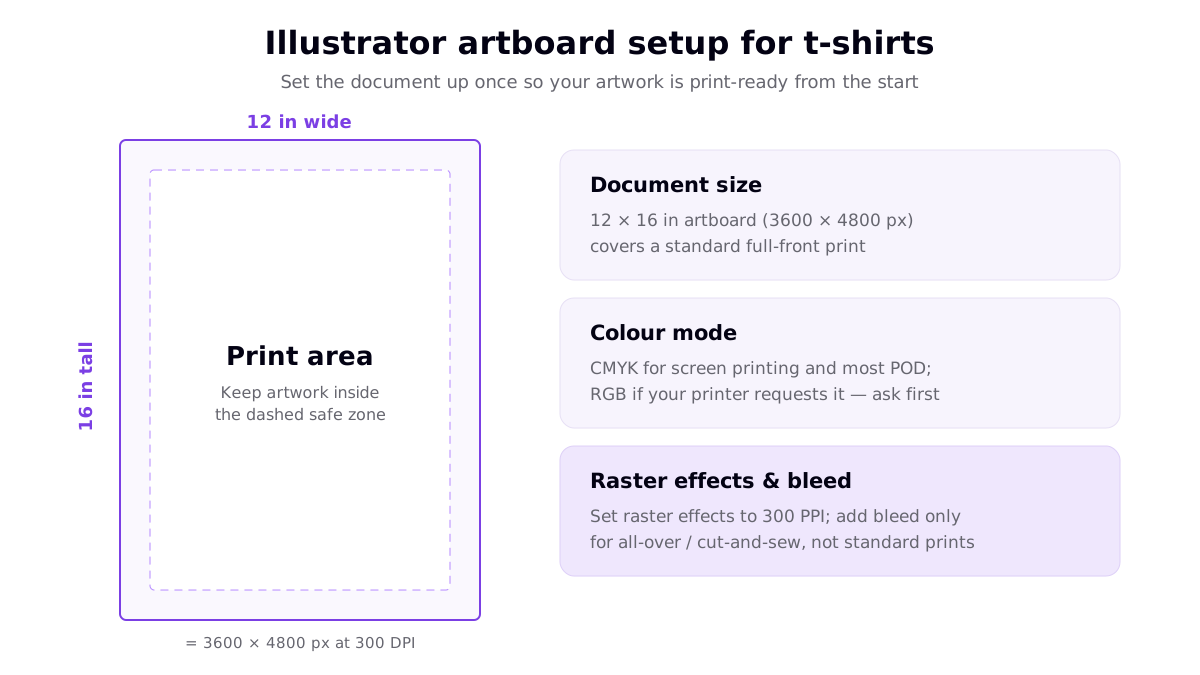
- Document size: a 12 × 16 inch artboard (3,600 × 4,800 px at 300 DPI) covers a standard full-front adult print. Because your art is vector, this is a guide rather than a hard resolution cap.
- Colour mode: choose CMYK for screen printing and most print work, since it mirrors how inks mix. Some POD and direct-to-garment services prefer RGB — confirm your provider's requirement first.
- Raster effects: set them to 300 PPI in Document Setup so any raster-based effects (drop shadows, textures) also print sharp.
- Safe zone: keep your main artwork inside a margin away from the edges so nothing important gets trimmed.
Step 2: Understand vector vs raster
This concept is why Illustrator exists and why it's the right tool for apparel. It's worth internalising before you draw anything.
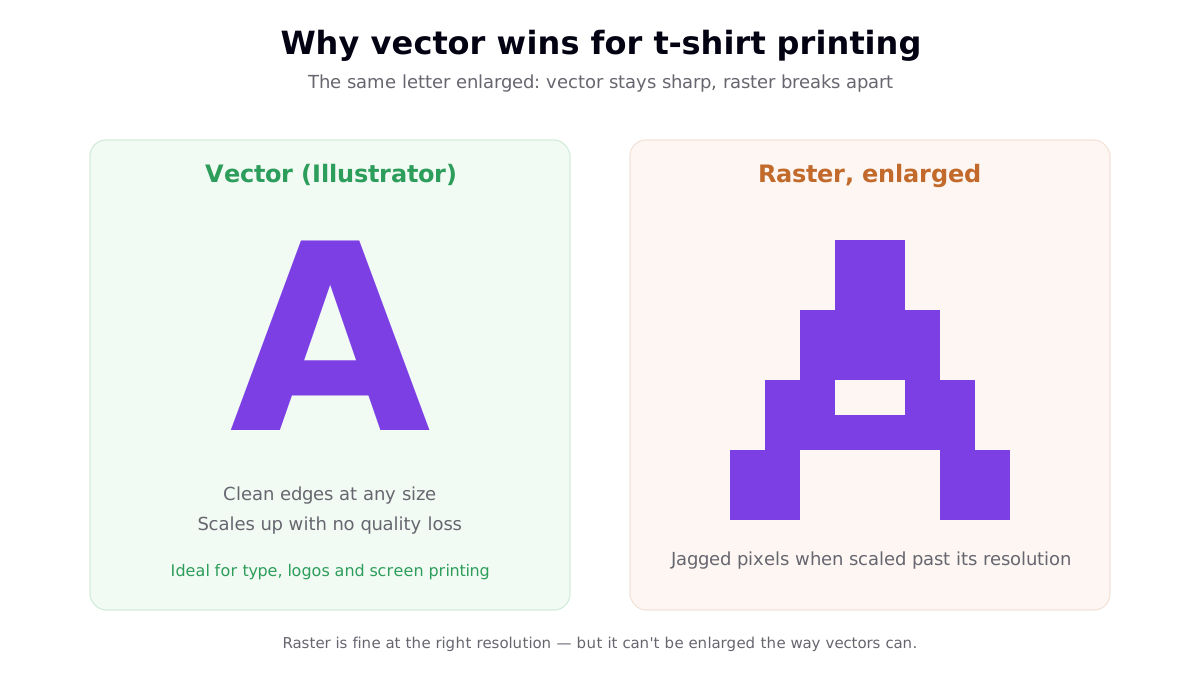
Vector artwork is built from mathematical paths, so it scales from a pocket print to a full back print with zero quality loss and produces clean, solid colours that are easy to separate for screen printing. Raster artwork is made of pixels and turns jagged when pushed past its resolution. You can place raster images in Illustrator (a photo, or AI-generated art), but pure type and logos should be vector. For pure type and simple shapes, exporting as an SVG file keeps everything scalable.
Step 3: The Illustrator t-shirt design workflow
Here's the end-to-end process, whether you start from a hand drawing or build the design directly with vector tools.
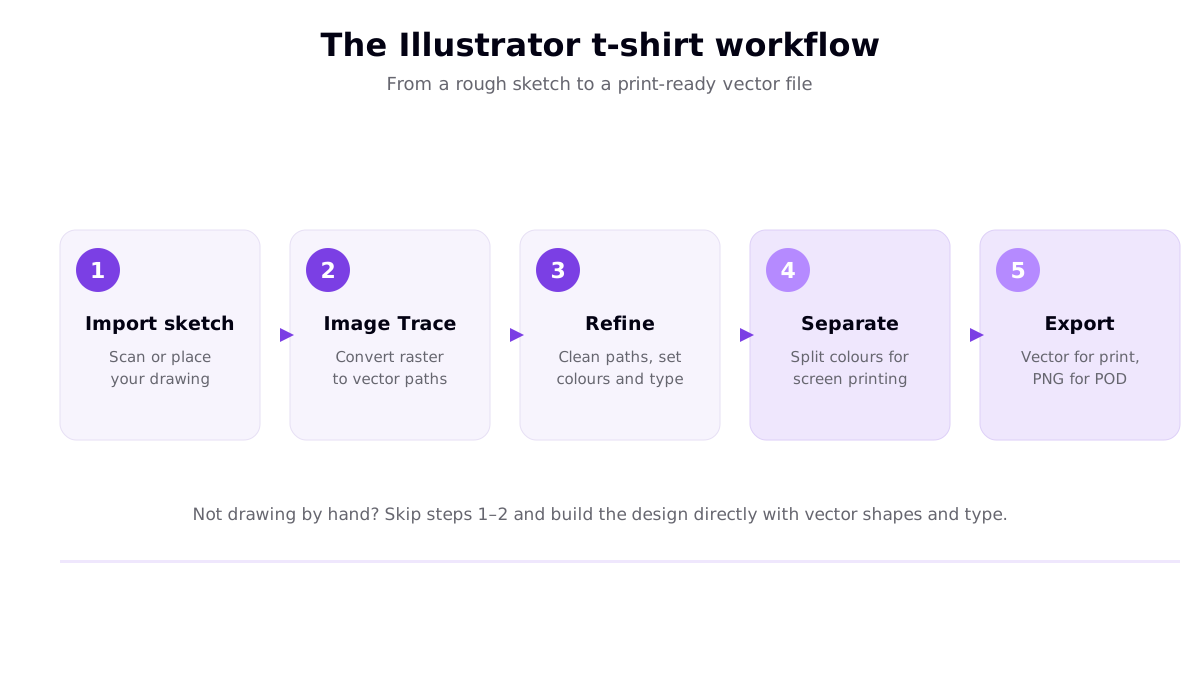
- Import your sketch. Scan or photograph a drawing and place it as a reference layer. (New to sketching? Start with our t-shirt drawing guide.)
- Image Trace. Use Illustrator's Image Trace to convert the raster sketch into editable vector paths, then Expand it. This is a fast way to vectorise hand-drawn line art.
- Refine. Clean up the paths, set your colours from swatches, add and adjust type. This is where the design actually comes together.
- Separate colours (if screen printing). Break the design into individual ink layers. Fewer colours means a cheaper, faster screen print.
- Export. Supply the vector file to a screen printer or vinyl cutter, or export a 300 DPI transparent PNG for a print-on-demand service.
If you don't draw by hand, skip the first two steps and build everything from vector shapes and type — many best-selling shirts are pure typography.
Illustrator tips for cleaner, more printable designs
- Outline your fonts before sharing. Convert text to outlines (Type > Create Outlines) so the type renders correctly on a machine that doesn't have your font. Keep an editable copy with live text first.
- Limit your colour count for screen printing. Each ink colour usually adds a setup charge, so a clean two- or three-colour design is cheaper to produce at volume.
- Use the Pathfinder panel. Combine and subtract shapes to build clean, single-path artwork that separates and cuts predictably.
- Work with global swatches. Editing a global colour updates it everywhere at once, which makes colourway variations trivial.
- Check at print size. Zoom to 100% at the artboard's real dimensions to judge how the design reads on an actual shirt.
When Illustrator is overkill
Illustrator is powerful but not always necessary. If you're making a handful of typography or image-based shirts, a browser tool gets you there faster — see the Canva t-shirt design tutorial or our comparison of t-shirt maker tools. Reach for Illustrator when you need vector precision, clean colour separations for screen printing, or scalable files a professional printer can work with directly. Many sellers use an AI image maker or Canva for artwork and only open Illustrator to finalise separations — a hybrid that keeps the fast parts fast.
Whichever tool you finish in, order a sample before scaling any design: printed colour never matches your screen exactly, and CMYK conversion can shift certain tones. A single sample is the cheapest insurance against a full run that disappoints.
Frequently asked questions
What size should an Illustrator artboard be for a t-shirt?
A common starting point for a full-front t-shirt design is a 12 by 16 inch artboard, which is 3,600 by 4,800 pixels at 300 DPI and covers a standard adult print area. Because Illustrator artwork is vector, the artboard is more of a guide than a hard resolution limit — vectors scale cleanly to any size. Keep your main artwork inside a safe zone away from the edges, and set the document's raster effects to 300 PPI so any raster-based effects also print sharp.
Should I use CMYK or RGB in Illustrator for t-shirt design?
For screen printing and most print work, set the document to CMYK, because that reflects how inks mix in the real world and gives you more predictable printed colour. Some direct-to-garment and print-on-demand services actually prefer RGB files and convert them on their end, so the safest approach is to check your printer's or POD provider's file requirements first and match them. Whichever you use, remember screen colours never match printed colour exactly — a sample order is the only way to be sure.
Why is vector better than raster for t-shirt printing?
Vector artwork is built from mathematical paths, so it stays perfectly crisp at any size — you can scale a vector logo from a pocket print to a full back print with no loss of quality. Raster images are made of pixels and become jagged or blurry when enlarged past their resolution. Vectors are also ideal for screen printing because they produce clean, solid colours that are easy to separate into individual ink layers. That is why Illustrator, a vector tool, is the industry standard for professional t-shirt graphics.
How do I export an Illustrator design for a print-on-demand shirt?
For print-on-demand services that want a raster file, export a transparent-background PNG at roughly 300 DPI at the final print size so the shirt shows through around your design. For screen printers or vinyl cutting, supply the vector file itself (AI, PDF, EPS or SVG) so the printer can separate colours or cut clean paths. Always outline your fonts before sharing a vector file so the type appears correctly on a machine that does not have your font installed, and keep an editable master copy for yourself.
Resources
- Adobe — Learn Illustrator: Design a T-Shirt (top ranking result for the primary keyword)
- Pixflow — How to Design T-Shirts in Adobe Illustrator (top ranking result)
- Adobe Express — Design Custom T-Shirts (top ranking result)
- Adobe — Illustrator Image Trace reference (official documentation)