Canva T Shirt Design: Full Tutorial
Canva t-shirt design is one of the fastest ways to go from an idea to a printable graphic, and you can do it entirely for free. The trick is setting up the canvas and export correctly so your design prints sharp rather than pixelated. This tutorial walks through the whole process — canvas size, transparent background, the export settings that matter, the licensing rules for selling, and how to get your finished design onto a real shirt.
Canva is a genuine all-in-one t-shirt design tool: templates, fonts, elements, and a built-in mockup that shows your design on the actual garment. Learn the setup once and every future design gets easier.
Step 1: Set up your Canva canvas at print size
The single most common Canva mistake is designing on a small default canvas and ending up with a blurry print. Instead, create a custom-size design at the final print dimensions. A full-front adult print is roughly 11 to 15 inches wide; at 300 DPI that's about 3,300 to 4,500 pixels across. Canva advises a minimum of around 220 PPI so a design isn't pixelated when printed, but aiming higher gives you a cleaner result and room to resize.
Start from a blank custom design (not a social-media template) and leave the background empty so it stays transparent. If you begin from a t-shirt template, delete or clear the background fill before you export.
Step 2: Design with text, elements and your own images
Search "t-shirt" in the Canva editor and thousands of templates appear, or start from scratch. Add your slogan, upload your own artwork, and pull in elements — but keep the design clean. The best-selling shirts are usually one strong graphic or one clear line of type, not a crowded collage. Keep type large and legible, and pick colours that contrast with the shirt you have in mind.
For the design craft itself — style, layout and what actually sells — see our complete t-shirt design guide. If you want more typographic control and vintage badge styles than Canva offers, our Kittl alternatives roundup covers tools built for that.
Step 3: Export a print-ready file from Canva
This is the step that decides whether your shirt looks professional or homemade. Get these three settings right:
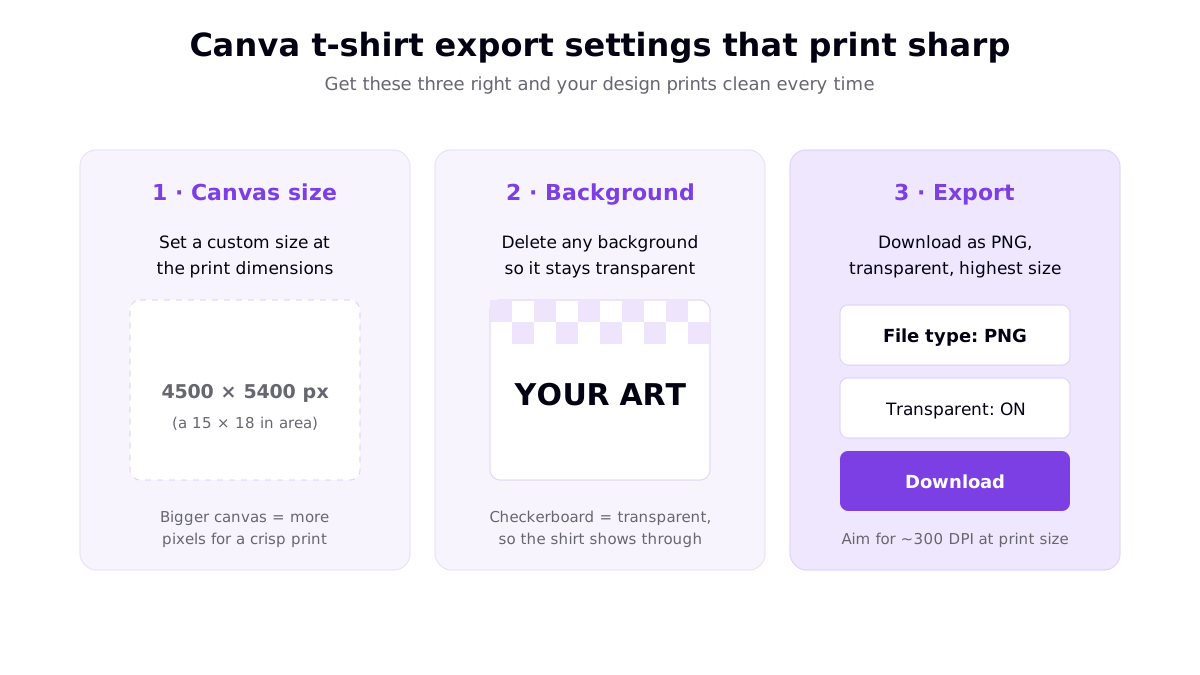
- File type: PNG. PNG supports transparency, which apparel printing needs.
- Transparent background: on. This removes the box around your art so the shirt colour shows through. On some Canva plans this download option is a paid feature — check before relying on it.
- Highest size available. Combined with a print-size canvas, this keeps you near 300 DPI so the print stays crisp.
If your final artwork is pure text or a simple graphic, a vector export (SVG or PDF) scales without any loss and is ideal for vinyl cutting. For a broader walk-through of getting a sharp file from any tool, see designing your own shirt online.
Canva licensing: what you can and can't sell
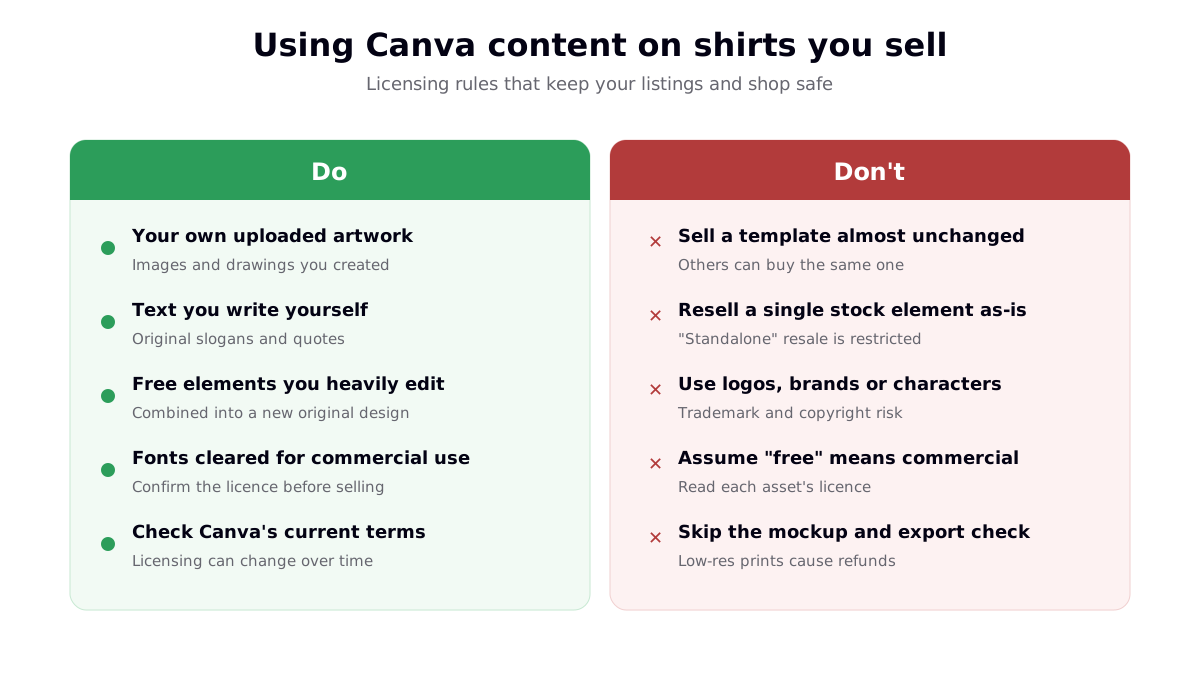
Canva is safe for commercial t-shirts as long as you respect the content licence. The dividing line is originality: your own work and heavily combined elements are fine; reselling Canva's assets as-is is not.
| Usually fine | Risky or restricted |
|---|---|
| Your own uploaded artwork and photos | Selling a template almost unchanged |
| Slogans and quotes you write yourself | Reselling a single stock element on its own |
| Free elements combined into a new original design | Logos, brand names, characters you don't own |
| Fonts confirmed as commercial-use | Assuming "free" always means commercial-use |
Content licences change, so treat this as guidance and read Canva's current terms before scaling a shop. Trademarked references are a separate, serious risk on any platform — our trademark guide for POD sellers explains what gets shops suspended.
From Canva to a live listing
A Canva export is just a file — turning it into shirts people buy takes a few more steps. The workflow below moves your design from a blank canvas to a product buyers can order.
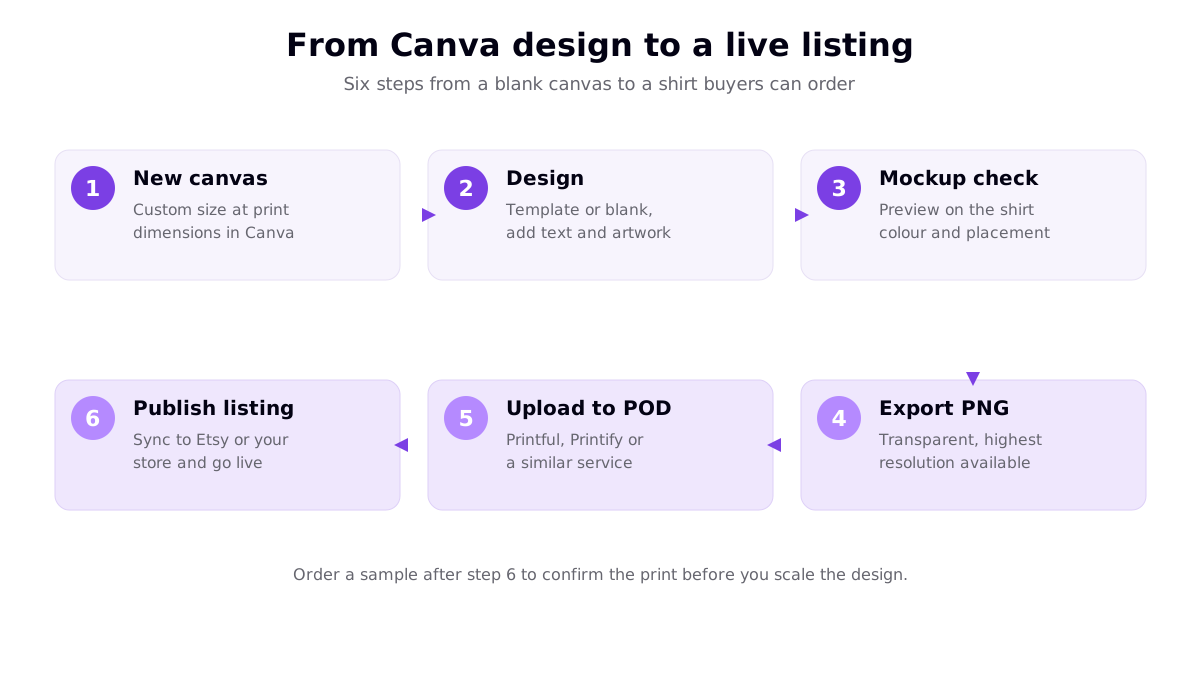
After you export your transparent PNG, upload it to a print-on-demand service such as Printful or Printify, place it on the product with the correct template, and sync the listing to a marketplace like Etsy or your own store. The provider prints and ships each order after a customer buys, so you never hold inventory. Always order one sample first — print colour and placement vary between products and providers, and a $10–20 sample saves you from scaling a design that doesn't translate to fabric.
Canva t-shirt design tips that make a difference
- Use the Mockups tool. Canva can preview your design on shirts and different models, which catches contrast and placement issues before you export.
- Design for the garment colour. Light artwork disappears on light shirts; check it against the actual colour you'll sell.
- Keep a wide safe margin. Don't push artwork to the very edge of the print area — leave breathing room so nothing gets cropped.
- Save an editable copy. Keep the Canva file so you can make colour variants and product-specific versions without rebuilding from scratch.
- Batch your exports. Once your canvas and settings are dialled in, duplicating the design for variations is fast — this is how you go from one shirt to a catalogue.
Canva won't give you the vector precision of a professional suite, but for the vast majority of typography and image-based shirts it's more than enough. When you outgrow it — usually for screen-printing separations — the Adobe Illustrator t-shirt tutorial is the logical next step, and our roundup of t-shirt maker tools compares the whole landscape.
Frequently asked questions
Can you design a t-shirt in Canva for free?
Yes. Canva's free plan lets you create a t-shirt design from a template or a blank canvas, add text and your own images, use many free elements and fonts, and preview the design on a mockup. The main limits on the free tier are that some elements and templates are marked as Pro (paid), and you should confirm you can export at a high enough resolution for print. You can add and edit everything you need for a simple, sellable design without paying.
What size should a Canva t-shirt design be?
Set a custom canvas at the final print size rather than using a small default. A full-front adult print is roughly 11 to 15 inches wide, and at 300 DPI that is about 3,300 to 4,500 pixels across. Canva recommends a minimum of around 220 PPI so your design is not pixelated when printed, but aiming for 300 DPI gives you a sharper result and more room to scale. Design on a transparent background so the shirt colour shows through around your artwork.
How do I make a transparent background in Canva for a t-shirt?
Start from a blank custom-size design with no background fill, or delete any background element so the canvas shows the checkerboard pattern that indicates transparency. When you download, choose PNG as the file type and turn on the transparent background option. Saving a transparent PNG lets the print-on-demand service place your artwork on any shirt colour without a visible box around it. The transparent background download is a paid feature on some Canva plans, so check before you rely on it.
Can I sell t-shirts I design in Canva?
Yes, with care. You can sell shirts using your own uploaded artwork, text you write, and free elements combined into a genuinely new design. What you cannot do is resell a template almost unchanged, sell a single Canva stock element on its own, or use logos, brands and characters you do not own. Free does not automatically mean cleared for commercial use, so check the licence on each asset and read Canva's current content licence terms before you list a design for sale.
Resources
- Canva — Custom T-Shirts (top ranking result for the primary keyword)
- Canva — How to Design and Print a T-Shirt (top ranking result)
- Canva — T-Shirt Design Maker (top ranking result)
- Printful — How to Prepare the Perfect Print File (export resolution and format reference)