How to Make AI Images Print-Ready: 300 DPI Guide (2026)
The single most common technical failure in print on demand is uploading an image that looks perfect on screen and prints like a blurry mess. The cause is almost always the same: not enough pixels for the print size. This guide explains DPI in plain language, gives you the exact pixel targets for common products, and shows how to get AI-generated images there without visible artifacts.
DPI, explained without jargon
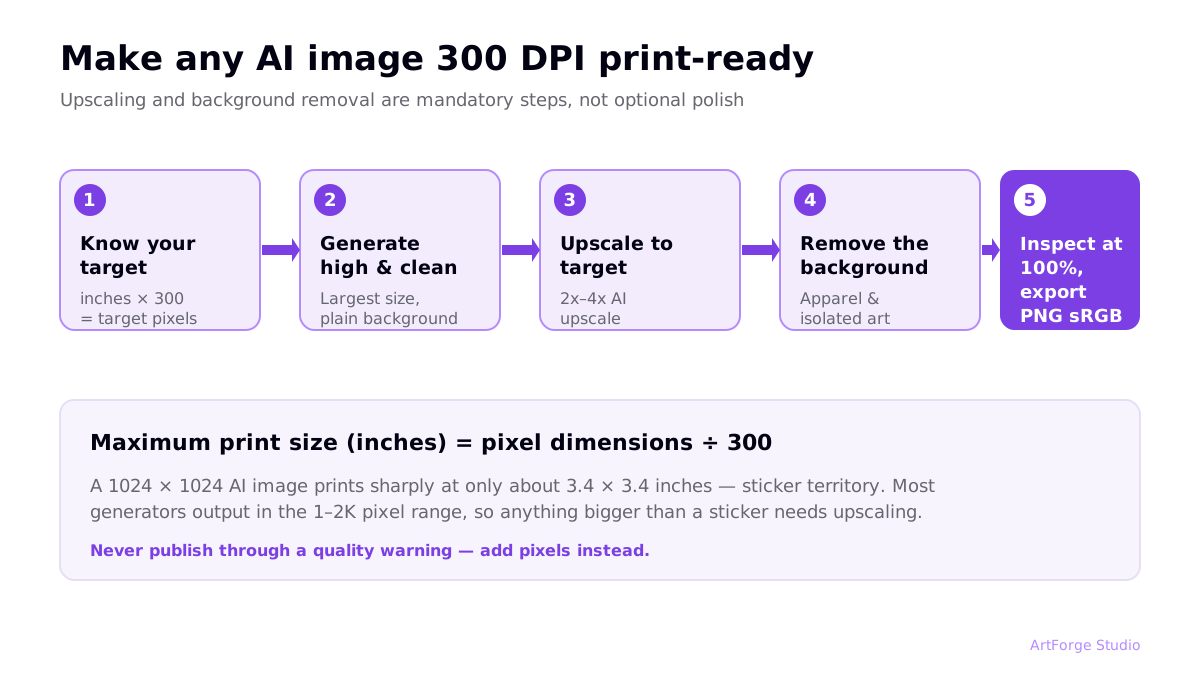
DPI (dots per inch) is how densely a printer lays down your image's pixels on physical material. The industry standard for sharp, close-viewing prints is 300 DPI: every inch of printed area consumes 300 pixels of your image.
That gives you one formula that answers every print sizing question:
Maximum print size (inches) = pixel dimensions ÷ 300
A 1024×1024 AI image can therefore print sharply at about 3.4×3.4 inches — sticker territory, nowhere near a shirt front. Flip the formula to get requirements: a 12"×16" shirt print needs 12×300 by 16×300 = 3600×4800 pixels.
The metadata myth: "just set it to 300 DPI"
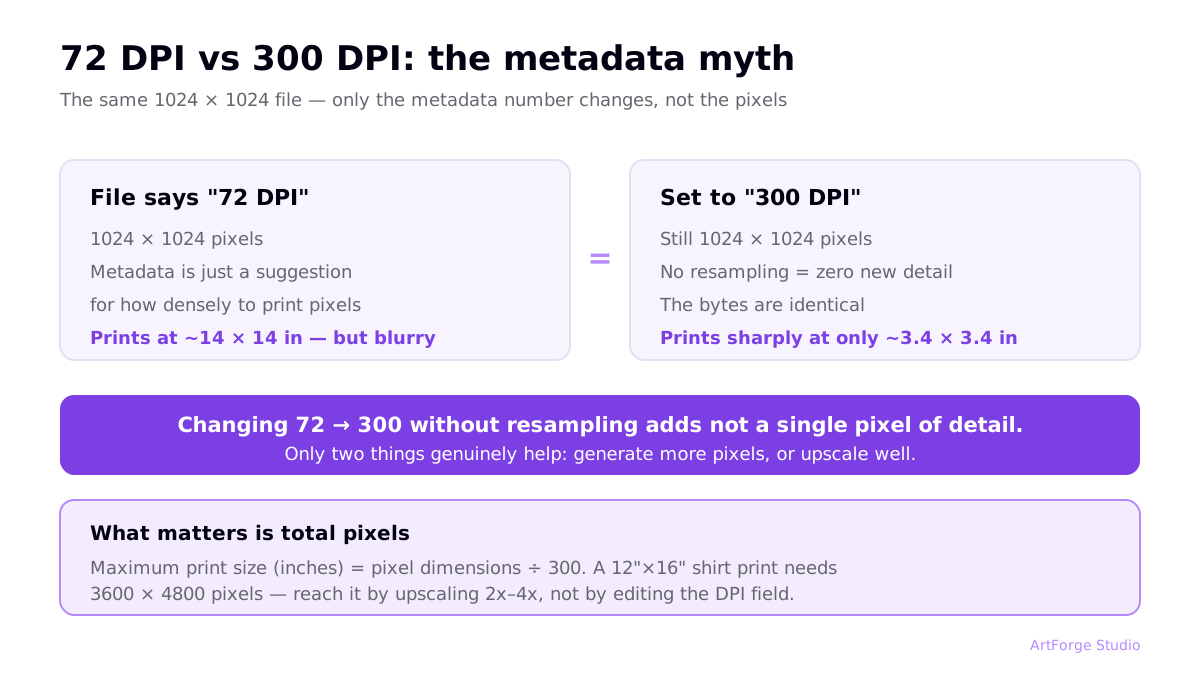
The DPI number saved inside a file is only metadata — an instruction, not information. Changing 72 to 300 in an editor without resampling does not add a single pixel of detail. Software that "converts to 300 DPI" by editing metadata is doing nothing for print quality. Only two things genuinely help: generating more pixels, or upscaling well.
Pixel targets for common POD products
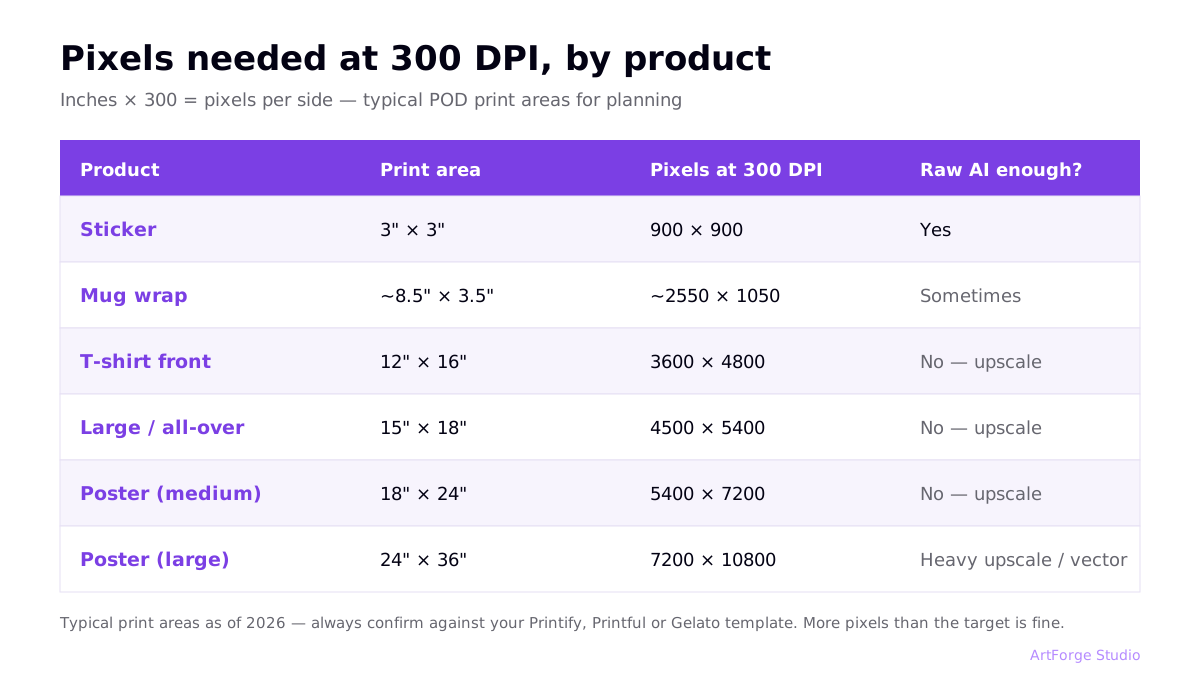
| Product | Typical print area | Pixels needed at 300 DPI | Typical raw AI output enough? |
|---|---|---|---|
| Sticker | 3" × 3" | 900 × 900 | Yes |
| Mug wrap | ~8.5" × 3.5" | ~2550 × 1050 | Sometimes |
| T-shirt front | 12" × 16" | 3600 × 4800 | No — upscale |
| Large shirt / all-over | 15" × 18" | 4500 × 5400 | No — upscale |
| Poster (medium) | 18" × 24" | 5400 × 7200 | No — upscale |
| Poster (large) | 24" × 36" | 7200 × 10800 | No — heavy upscale or vector |
Print areas vary by provider and product — always confirm against the template in your Printify/Printful/Gelato editor. These are typical values for planning.
One nuance: 300 DPI is the standard for items viewed at arm's length. Big posters viewed from across a room can pass at 150–200 DPI — useful headroom when a design just misses the target.
Also note that more pixels than the target is never a problem — platforms downsample cleanly. Aim slightly above the requirement so you have cropping room when positioning the design on different products and garment sizes.
Why AI images start behind
Most AI generators natively output in the 1–2K pixel range per side. That is a design decision (generation cost scales steeply with resolution), not a bug. It means that for anything bigger than stickers and small mugs, upscaling is a mandatory step of the POD workflow, not an optional polish. This applies to Midjourney, Ideogram, and most others — the workflow specifics for Midjourney are in our Midjourney to Printify guide.
Upscaling without artifacts
AI upscalers (Real-ESRGAN family, Topaz Gigapixel, and the upscalers built into pipeline tools) do not just stretch pixels — they synthesize plausible detail. Used well, 2x–4x upscales are indistinguishable from native resolution on most POD artwork. Rules of thumb:
- 2x–4x is the sweet spot. A 1024px image at 4x reaches 4096px — enough for shirt prints.
- Flat, graphic styles upscale best. Bold shapes, clean lines, and solid colors survive aggressive upscaling. Fine textures, tiny text, and photographic grain degrade first.
- Inspect at 100% zoom before publishing. Look for waxy skin, smeared texture, and halos along high-contrast edges.
- For very large prints, consider vectors. Vector (SVG) designs scale infinitely — tools like Recraft generate them natively, as covered in our generator comparison.
The other file rules that matter
Format: PNG first
- PNG — lossless and supports transparency; the default for apparel and anything with an isolated design.
- JPEG — fine for full-bleed art like posters; save at maximum quality to avoid compression blocks appearing in print.
- SVG/vector — resolution-proof, ideal for flat designs, but most POD platforms rasterize on upload; export a high-res PNG from the vector for consistent results.
Transparency
Apparel designs must be isolated on a transparent background — otherwise the printer prints the background rectangle too. AI generators rarely output transparency, so background removal is a standard pipeline step. Check edges around fine detail after removal.
Color: stay in sRGB
Design in sRGB and upload sRGB. Major POD platforms handle conversion for their printing hardware. Two practical notes: printed colors are typically slightly more muted than a backlit screen, and ultra-saturated neons are the most likely to disappoint. If a design's exact colors are commercially critical, order a sample first.
Product-specific gotchas
Mugs: design for the wrap
Mug templates are wide and short (roughly 2.4:1). A square design dropped into a wrap template either gets tiny or gets cropped. Either design at the wrap ratio from the start, or place a square design deliberately (centered for right-handed display, or duplicated on both sides). Remember the physical curve: elements at the far edges of the wrap are barely visible when the mug sits on a desk.
Posters: mind the bleed
Edge-to-edge printing requires your file to extend slightly past the trim line ("bleed"), and anything important must stay inside the safe zone — most providers' templates mark both. Keep text and focal elements comfortably inside the safe area, and let backgrounds run to the bleed edge.
Apparel: print method changes the rules
Most POD garments are DTG (direct-to-garment) printed: fine detail and subtle gradients print well, but semi-transparent pixels can print patchily — prefer hard edges over soft fades at the design boundary. All-over-print products typically use sublimation, which loves saturated full-bleed art but only works on polyester-based garments. When a design matters commercially, the sample order is not optional.
Step-by-step: make any AI image print-ready
- Know your target. Check the product's print area and multiply inches × 300 to get target pixels.
- Generate high and clean. Use the largest generation size available and prompt for a plain background.
- Upscale to target. 2x–4x AI upscale to meet or exceed target pixels.
- Remove the background (apparel and isolated designs).
- Inspect at 100%. Edges, texture, small text.
- Export PNG, sRGB.
- Upload and confirm the platform's quality check passes. If it warns, add pixels — never publish through a warning.
Or automate steps 2–7: in ArtForge the pipeline runs automatically after generation, which is exactly the tool-consolidation argument made in our automation guide. And if you are still setting up your shop, the step-by-step POD starter guide puts this file work in context.
FAQ
Does changing the DPI number in an editor make an image print-ready?
No. The DPI value in a file is metadata — a suggestion for how densely to print the pixels. Changing 72 to 300 without resampling adds no detail. What matters is total pixels: 1024×1024 prints at about 3.4×3.4 inches at 300 DPI regardless of metadata. To print larger, you need more pixels — that means upscaling.
Is 300 DPI always required for print on demand?
300 DPI is the safe standard for items viewed up close (shirts, mugs, stickers). Large posters viewed from a distance can look fine at 150–200 DPI. Treat your POD editor's minimum as the floor and 300 DPI as the target.
What file format should I upload to Printify or Printful?
PNG in sRGB is the default: lossless, with the transparency apparel needs. JPEG is acceptable for full-bleed poster art. Platforms convert colors for their printers, so you generally do not need CMYK — but expect prints slightly more muted than your screen.
How much can I upscale before quality breaks down?
Modern AI upscalers handle 2x–4x well on most artwork. Beyond 4x, inspect closely: flat graphic designs survive best, while fine textures and small text degrade first. For very large prints, consider vector output instead.