Midjourney to Printify: Fastest Print-Ready Workflow (2026)
Midjourney makes stunning images. Printify puts designs on products. The gap between them is where new sellers get burned: upload a raw Midjourney image to Printify and you will usually meet a low-resolution warning, a background you did not want printed, or — worse — a customer photo of a blurry shirt three weeks later.
This guide covers the full manual workflow, the exact specs to hit, and the shortcut that collapses most of the steps.
Why Midjourney images are not print-ready
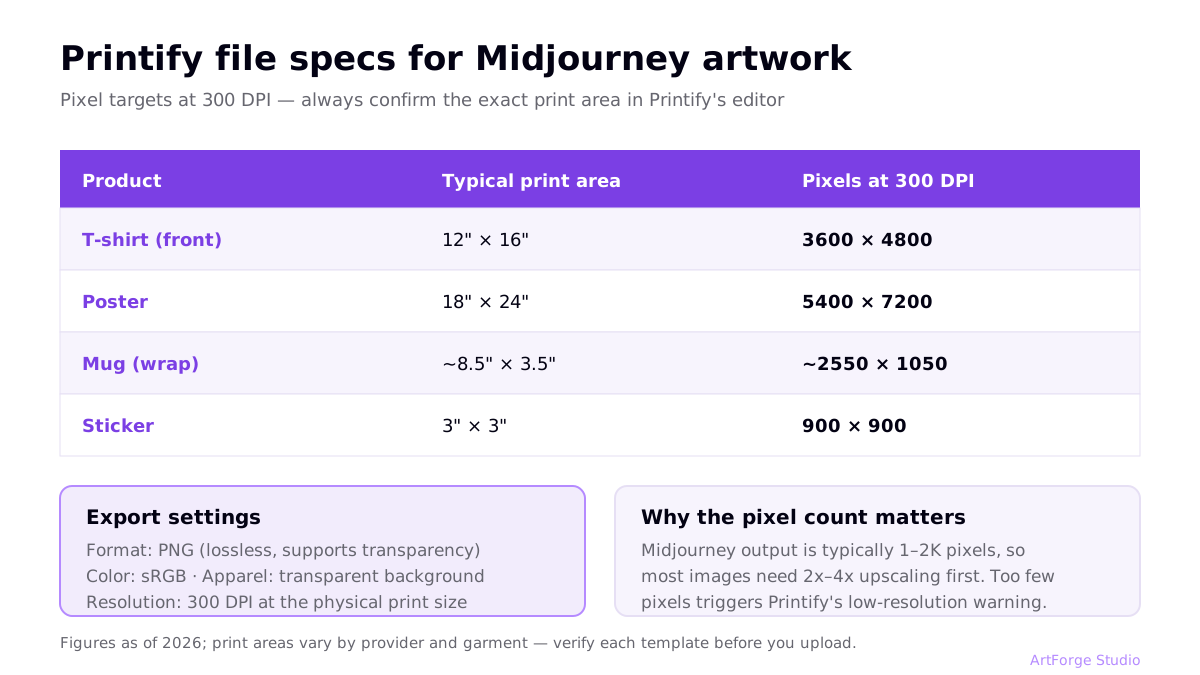
- Resolution. Midjourney output is typically in the 1–2K pixel range depending on settings and upscales. Print needs roughly 300 DPI at physical size — a 12"×16" shirt print is 3600×4800 px. Raw output is usually well short.
- No transparency. Midjourney always renders a full scene. Apparel printing needs the artwork isolated on a transparent background, or you are printing a rectangle.
- Format. You want PNG (lossless, supports transparency) in sRGB for POD uploads; compression artifacts in shared/converted JPEGs show up in print.
None of this is a flaw in Midjourney — it was built to make images, not production files. The fix is a preparation pipeline.
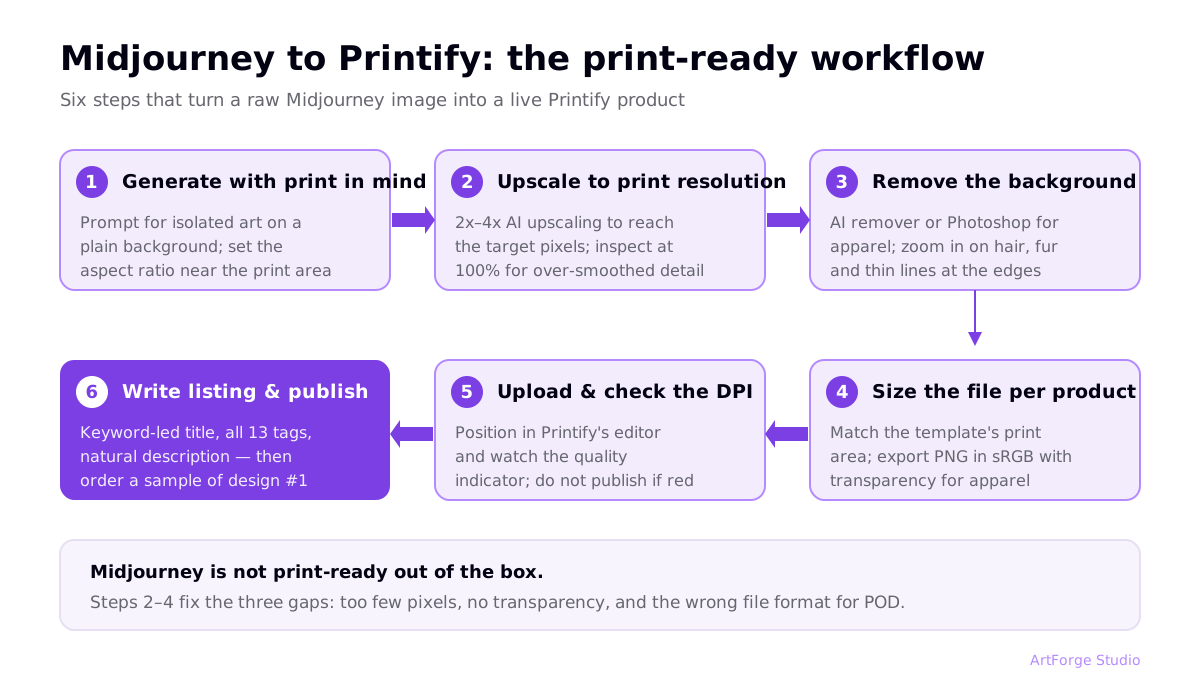
The manual workflow, step by step
Step 1: Generate with print in mind
- Prompt for the design style, not a product photo: "isolated vintage sunflower illustration, clean background" beats "sunflower t-shirt".
- Ask for a plain, high-contrast background — it makes background removal dramatically cleaner.
- Set the aspect ratio near your print area (e.g. 3:4 for a classic shirt placement) so you crop less later.
Step 2: Upscale to print resolution
Use Midjourney's own upscaler first, then an AI upscaler (Topaz Gigapixel, Real-ESRGAN-based tools, or a built-in pipeline step) to reach target pixels. 2x–4x is routine; beyond that, inspect for waxy or over-smoothed detail at 100% zoom.
Step 3: Remove the background
Run an AI background remover or Photoshop subject selection. Zoom in on edges — fine details like hair, fur, and thin lines are where automated removal fails, and a bad edge is glaring on a printed shirt.
Step 4: Size the file per product
Every Printify product template states its print area. Common 300 DPI targets:
| Product | Typical print area | Pixels at 300 DPI |
|---|---|---|
| T-shirt (front) | 12" × 16" | 3600 × 4800 |
| Poster | 18" × 24" | 5400 × 7200 |
| Mug (wrap) | ~8.5" × 3.5" | ~2550 × 1050 |
| Sticker | 3" × 3" | 900 × 900 |
Print areas vary by provider and garment — always check the template inside Printify's editor. The full math is in our 300 DPI guide.
Step 5: Upload, position, and check the DPI indicator
In Printify's product editor, upload the PNG, position it, and watch the quality indicator. If it warns, do not publish — go back and upscale further. Order a sample of your first design on each product type; screens lie, prints do not.
Step 6: Write the listing and publish
Title, tags, and description decide whether anyone ever sees the product. That is its own craft — covered in Etsy SEO for print on demand.
What the manual route costs you
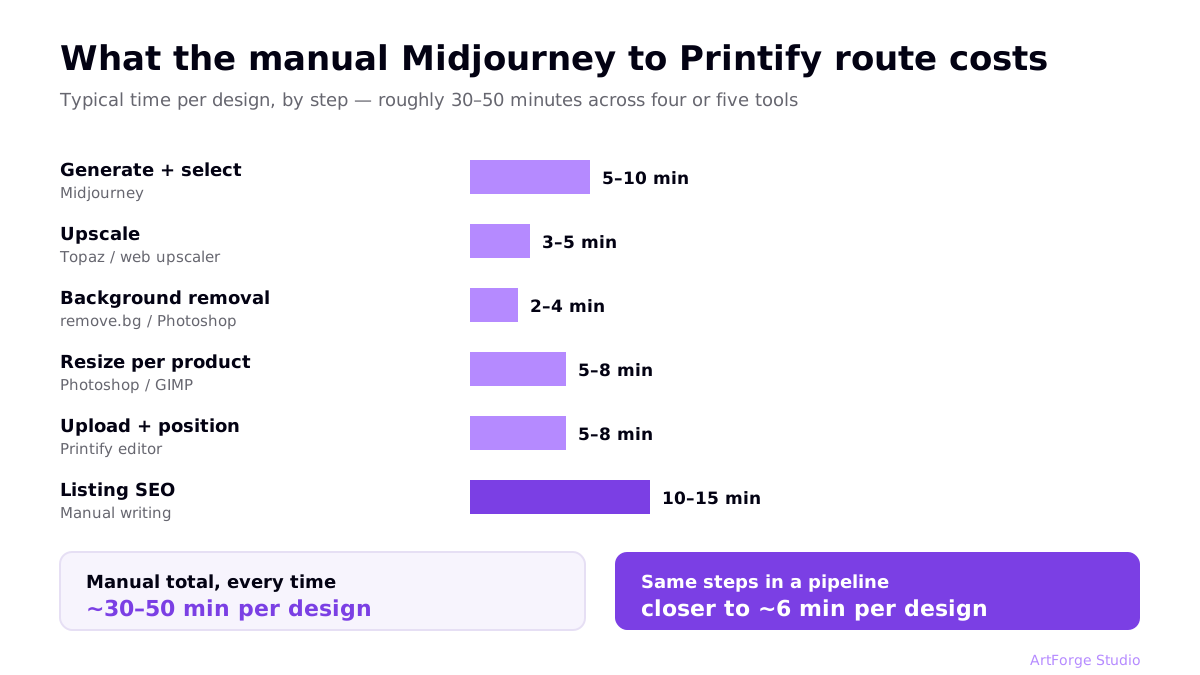
| Step | Tool | Typical time |
|---|---|---|
| Generate + select | Midjourney | 5–10 min |
| Upscale | Topaz / web upscaler | 3–5 min |
| Background removal | remove.bg / Photoshop | 2–4 min |
| Resize per product | Photoshop / GIMP | 5–8 min |
| Upload + position | Printify editor | 5–8 min |
| Listing SEO | Manual writing | 10–15 min |
Call it 30–50 minutes per design across four or five tools — every time. Sustainable for occasional designs; brutal at volume.
The faster workflow: pipeline instead of relay race
The steps above never change — what changes is who performs them. In a pipeline tool like ArtForge, generation happens against multiple AI models (Midjourney's aesthetic has strong open competitors now — see the 2026 generator comparison), and the moment you pick a winner, print preparation runs automatically: upscale to target, background removal, per-product formatting. SEO is drafted for review, and publishing pushes straight to your connected Printify, Printful, or Gelato store. The 30–50 minutes becomes closer to 6 — the arithmetic is in our automation guide.
If you love Midjourney specifically, a hybrid works too: generate there, then import into a pipeline for everything after the image. The point is not which generator you use — it is never doing the relay race by hand.
Prompt patterns that survive the pipeline
Some Midjourney habits make the print-prep steps dramatically easier. Patterns worth stealing:
- The isolation pattern: "[subject], [style], isolated on plain white background, no text, centered composition" — clean removal, predictable placement.
- The distressed-print pattern: "vintage [subject] illustration, distressed screen-print texture, limited color palette, isolated on cream background" — the retro look that dominates apparel niches, and limited palettes upscale cleanly.
- The line-art pattern: "minimalist single-line drawing of [subject], black ink on white" — near-vector simplicity that survives aggressive upscaling and prints crisply on any garment color after inversion.
Two garment realities to design for: a design made for white shirts often disappears on black ones (and vice versa), so plan a light and a dark variant of each winner; and fine outer detail — thin whiskers, wispy edges — is what breaks first in both background removal and printing, so favor designs with reasonably solid silhouettes.
Choosing products for Midjourney art
Midjourney's strengths map unevenly across the Printify catalog. Painterly, atmospheric artwork shines on posters, canvases, and journals, where the full scene prints edge to edge and no background removal is needed at all. Typography-led designs are its weak spot — if your niche runs on quote shirts, generate the art in Midjourney and set the type in a design tool, or use a text-strong model instead (see the generator comparison for which models render text reliably).
Licensing: the part people skip
Two checks before you sell Midjourney work:
- Midjourney's terms. Paid subscriptions include commercial usage rights, and there have historically been extra conditions for high-revenue companies. Read the current terms — they change.
- The content itself. A commercial license to the image does not protect you if the image contains a trademarked character, logo, or phrase. AI models will happily generate infringing content if prompted. Our POD trademark guide covers how to check before you publish.
Checklist: Midjourney → Printify in one pass
- Prompt for isolated artwork, plain background, print-shaped aspect ratio
- Upscale to the template's pixel target (300 DPI at print size)
- Remove background; inspect edges at 100%
- Export PNG, sRGB
- Upload to Printify; verify the quality indicator is green
- Trademark-check the design and listing text
- Write keyword-led title, all 13 tags, natural description
- Publish — and order a sample of design #1
FAQ
Can I sell Midjourney images on Printify products?
Generally yes. Midjourney's paid plans grant commercial usage rights to what you generate (check the current terms — there have been revenue-based conditions for larger companies), and Printify accepts AI-generated artwork. You remain responsible for ensuring designs do not infringe trademarks or copyrighted characters.
What resolution do Midjourney images need for Printify?
It depends on the product's print area. At the standard 300 DPI, a 12"×16" shirt print needs 3600×4800 px and an 18"×24" poster needs 5400×7200 px. Midjourney output is typically in the 1–2K range, so most images need 2x–4x AI upscaling before upload.
How do I remove the background from a Midjourney image?
Midjourney does not output transparent backgrounds, so apparel designs need a removal step: an AI background remover, Photoshop's subject selection, or a pipeline tool that does it automatically during print prep. Always inspect edges around fine detail before publishing.
Why does Printify show a low-resolution warning?
The editor checks whether your file has enough pixels for the product's print area at acceptable DPI. A warning means a blurry print. Fix it by upscaling to the pixel dimensions the template asks for — never by ignoring the warning.